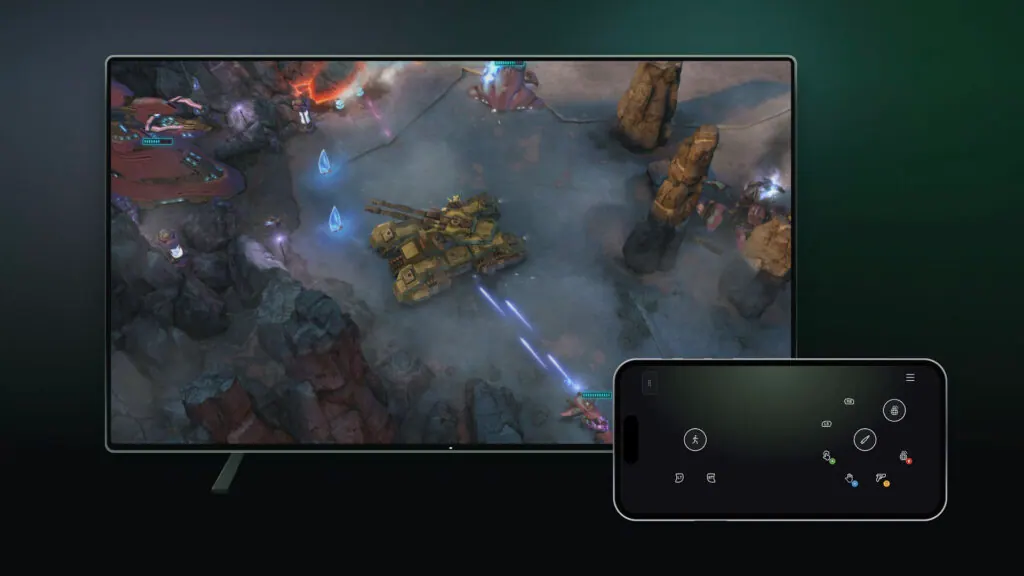
Xbox has opened two Cloud Gaming input previews: a phone can act as a controller on supported Smart TVs, while the Nano Controller can connect directly over Wi-Fi in the US. Both are limited tests, not universal features.
What did Xbox announce for Cloud Gaming?
Xbox began rolling out two input previews on November 4, 2026. The first lets a supported Android or iOS phone act as a controller for cloud games on certain Smart TVs. The second lets the Xbox Nano Controller connect to a cloud gaming session over Wi-Fi rather than sending its input to the TV over Bluetooth. That cloud connect test is limited to US players and selected TV or web experiences for now.
We checked Xbox Wire's announcement and linked support pages. They describe previews, not a completed platform-wide launch. Xbox has not supplied a list of every supported game in the announcement, a measured input-lag improvement, or a date when these options will reach all regions. We have not tried either preview ourselves; the practical notes here explain what readers can verify in their own setup.
- Phone controller: supported Android or iOS phone, supported Smart TV, supported cloud gaming country.
- Nano cloud connect: US preview, supported Smart TV or web experience, Wi-Fi setup.
- Both options: limited tests; game and device availability can vary.
- The Xbox Wire announcement was published November 4, 2026.
Your phone can become a TV controller, with limits
The phone feature is meant for the moment a cloud game is on the TV but a physical controller is not nearby. Xbox says the controls open in the phone's browser, so the phone does not need a separate controller app for this specific interaction. Some games receive controls tailored to their play style. That last point matters more than the headline: a simple touch layout may be fine for a menu-heavy or slower game, while a fast action game can demand more precise simultaneous inputs.
To find the preview, Xbox directs users to Settings, then Account, then Preview Features in the latest supported Smart TV experience. After enabling it, launch a game without a physical controller connected. If that TV, region and game qualify, the TV offers a phone-controller option. The flow uses a QR code to connect the phone to the session. Xbox says the preview is rolling out in countries where its cloud service is supported, but this is not a promise that every TV in those countries already has the switch.
Our read is that the feature lowers the barrier to trying a cloud game with someone else in the room. It could also rescue a session when a controller battery dies. We would still treat a physical controller as the better starting point for timing-sensitive play until a player has tested the touch layout in a game they know. That is a usability judgment, not a claim that Xbox's preview failed any latency test.
- Open the Xbox Cloud Gaming app on a supported Smart TV.
- Look for Settings > Account > Preview Features and enable the preview if offered.
- Launch a supported game with no physical controller connected.
- Follow the TV's phone pairing prompt and check the on-screen controls before a demanding match.
Cloud connect gives the Nano Controller a different route
The Xbox Nano Controller preview changes where controller input goes first. In the familiar Bluetooth path, a controller talks to the TV and the TV forwards input to the remote game. In cloud connect, Xbox says the Nano Controller uses Wi-Fi to connect directly to the server running the game. The aim is to remove a local hop and help the action feel more responsive. Xbox uses careful language: it says the approach can help, not that every player will see a specific millisecond reduction.
For now, cloud connect is available to preview in the United States on supported Smart TVs and the web. Setup uses the Xbox beta app on Android or the Xbox Accessories app on PC; PC setup requires Xbox Insider enrollment. Connect the controller to your Wi-Fi through that app, then sign in to a supported cloud experience with the same Xbox account used during setup. Xbox says the controller will connect through cloud connect when the conditions line up.
The word 'direct' should not be read as bypassing your internet connection. The controller still needs a usable Wi-Fi network and the game stream still depends on the rest of the cloud path. Distance from the router, congestion, TV processing and the game itself may affect how responsive a session feels. We would compare the same game and screen under the same conditions before deciding that a new connection mode is better for a particular home.
- Current region: United States only for this preview.
- Current experiences: selected Smart TV and web cloud gaming sessions.
- Setup: Xbox beta app on Android, or Xbox Accessories on PC with Insider enrollment.
- Sign-in: use the same Xbox account during setup and gameplay.
Why these previews matter beyond another accessory
The two tests address different bottlenecks in cloud gaming. A phone controller tackles access: getting a casual session started when no dedicated pad is available. Cloud connect tackles control feel: shortening the input route where the supported Nano Controller and network allow it. Neither test upgrades the games themselves, but both can change whether a person decides to start a session or keep playing after the first few minutes.
For households sharing a TV, the phone route is the more immediate idea. It uses a device people already carry and requires no additional purchase. The question is whether touch controls suit the game and player. For enthusiasts already using a controller, the Wi-Fi route is more interesting, but it asks for particular hardware, an eligible location and a compatible cloud experience. We see these as two different audiences rather than competing ways to replace every controller.
What Xbox has not confirmed
Xbox says both features are being tested and may have limited device or game support. The announcement does not promise a global cloud connect rollout, a universal list of Smart TV models, or that a phone will provide custom controls in every game. It also does not publish the Nano Controller's latency data for different Wi-Fi conditions. The Xbox Support pages linked above are the right starting points for current device and setup information, while the in-app Preview Features menu tells you whether your own TV can join today.
The preview announcement does not change the cloud service's normal access rules. Do not assume that a phone-controller prompt grants a game entitlement, a subscription tier or availability in a country where Xbox Cloud Gaming is unavailable. Likewise, do not buy a Nano Controller solely for cloud connect unless the supported region, devices and use cases match your own setup. Xbox may expand or revise the tests as it gathers feedback, and that could change the answer after this article's publication.
- No universal latency benchmark was published for cloud connect.
- No worldwide release date was given for the Nano Controller preview.
- Not every game or Smart TV is guaranteed to support either preview.
- Current cloud gaming access and game rights still matter.
How to judge the preview in your own session
If the phone option appears on your TV, start with a game whose controls you already understand. Spend a few minutes in menus or a low-pressure area before taking it into a competitive match. Note whether buttons are readable, whether two actions can be used comfortably together, and whether the phone screen stays awake through a normal play period. Those observations are more useful than calling the feature good or bad after one awkward pairing attempt.
For cloud connect, compare the Nano Controller with your usual input path in the same game on the same display. Keep the network and display mode as similar as possible, then repeat a simple action several times. You are looking for a repeatable difference in control feel, not a laboratory latency figure. We have not run this comparison ourselves, and Xbox has not supplied enough public measurements to guarantee a result in your home.
- Check region, TV model and cloud game eligibility first.
- Try a familiar game before drawing conclusions about the controls.
- Compare input methods under similar network and display conditions.
- Use Xbox's preview feedback tools for reproducible issues.
FAQ
Can I use my phone as an Xbox Cloud Gaming controller on any TV?
No. Xbox says the November 2026 preview is available on supported Smart TVs in countries where Xbox Cloud Gaming is supported. The TV app must offer Preview Features, and supported games or devices may be limited.
Is Xbox Nano Controller cloud connect available worldwide?
No. Xbox describes the November 4 preview as a US-only test. It currently supports selected Smart TV and web cloud gaming experiences, and setup requires the Xbox beta app on Android or Xbox Accessories on PC.
Does direct Wi-Fi guarantee lower input lag?
No. Xbox says connecting the Nano Controller directly to the cloud session can help responsiveness, but it has not published a universal latency figure. Home Wi-Fi, internet quality, device and game can all affect the result.
CHECK THE ORIGINALS.
Facts and update details above are based on these official sources. Details can change as the game is updated.
- Preview Two New Ways to Play with Xbox Cloud Gaming ↗Xbox Wire
- Verified devices for Xbox Cloud Gaming ↗Xbox Support
- Cloud connect setup guide ↗Xbox Support
Loading comments…